Open the Calls app
In Teams, select the Calls phone icon in the left navigation. If it is hidden, select More apps (...), search for Calls, then right-click the icon and choose Pin.

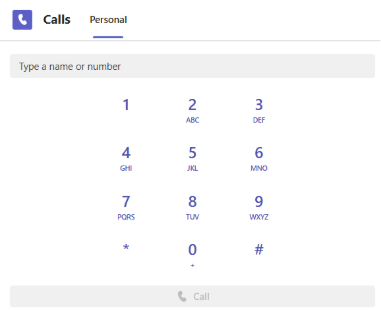
Confirm that your dial pad appears
Open Calls and confirm the dial pad appears in the upper-left area. If it is missing, contact your administrator to verify your Teams Phone license and calling policies.
Locate your Teams phone number
Your direct Teams number appears below the dial pad next to Work number. This is the number callers use to reach you directly.

Select and test your audio devices
Under your dialpad, you will see several dropdown lists. The one next to the headset icon will allow you to select your preferred audio output device.

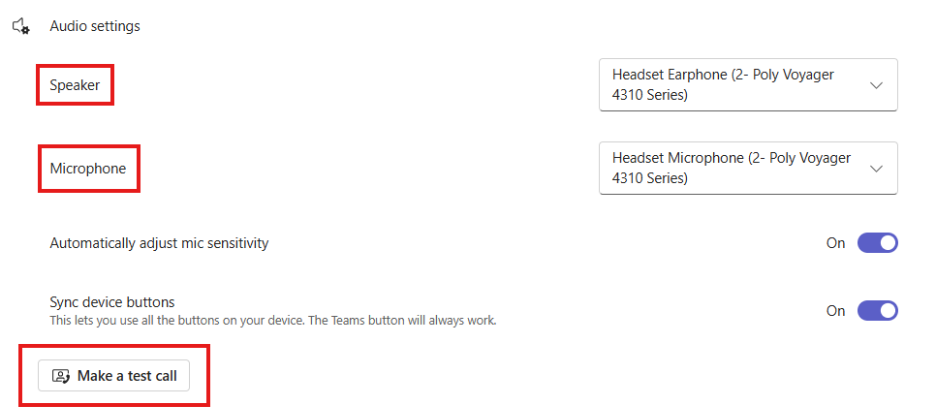
To choose a microphone or place a test call, open the device menu and select Device settings. Under Audio, confirm your speaker and microphone, then select Make a test call.
Verify your emergency address
Teams tracks your location so that if you ever call 911 via Teams, emergency services will accurately get to your location. Under your dialpad, you will see several dropdown lists. The one next to the pin icon will allow you to verify or reset your address.
You can verify multiple addresses (for example, office and home) if you need. You can also verify and/or reset your E-911 address at the bottom of your Calls Settings page.
Set your voicemail greeting
In Settings > Calls, go to Voicemail. Record a custom greeting or create a text-to-speech greeting, then review the options for redirected calls.
Setup complete: You are ready to make and receive calls in Teams.